
एक चेहरे की फोटो बहाल करें
ऐसे पोर्ट्रेट से शुरू करें जहाँ आँखें, नाक, मुँह और फेस आउटलाइन अभी भी पहचाने जा सकें — भले इमेज सॉफ्ट, कंप्रेस्ड या लो रेज़ोल्यूशन हो।
- एक इमेज अपलोड
- चेहरे-केंद्रित बहाली
- डाउनलोड-रेडी परिणाम
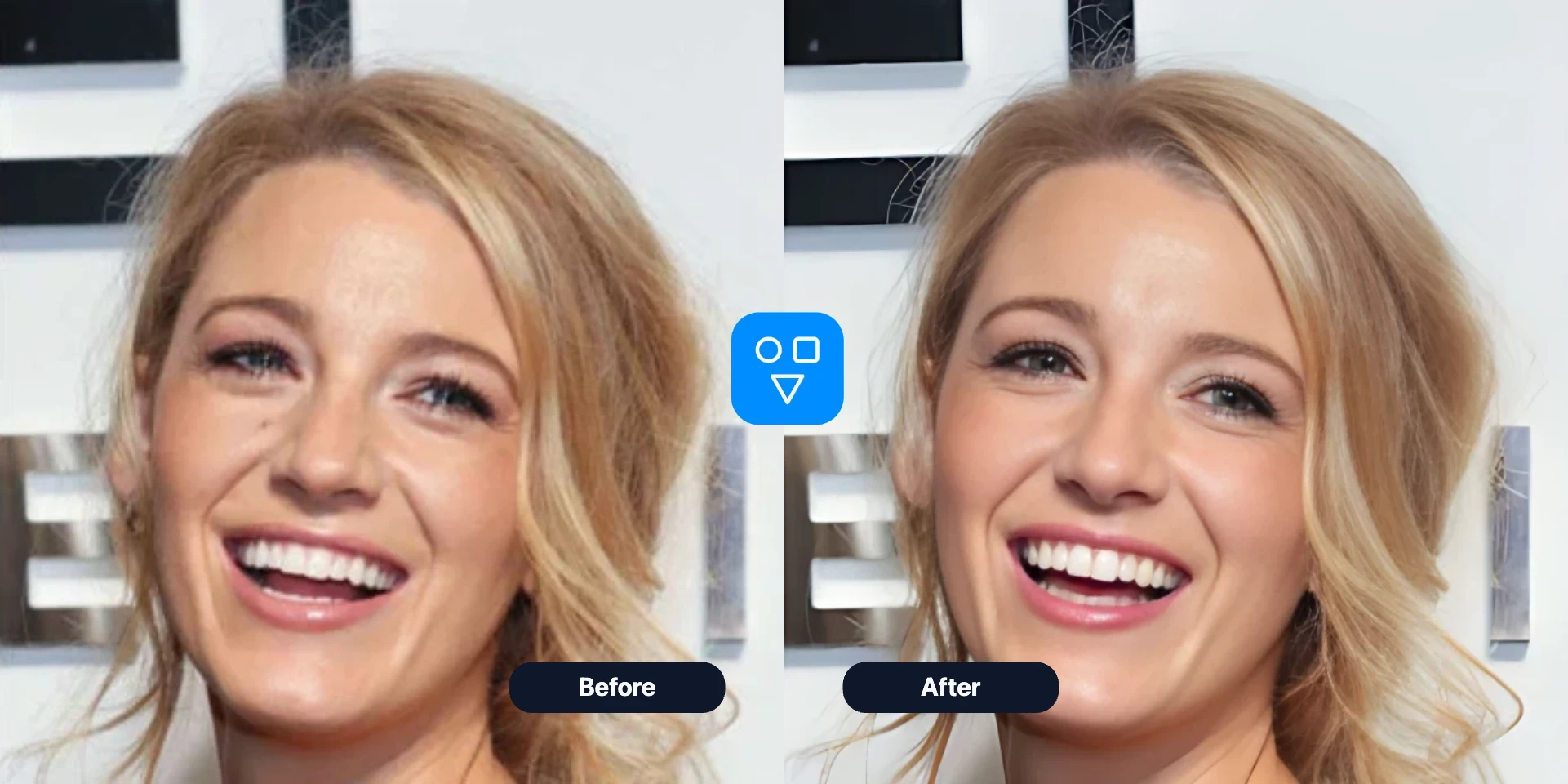
चेहरा बहाल
एक धुंधली, पुरानी, कंप्रेस्ड या AI-जनरेटेड फेस फोटो अपलोड करें और फेस क्लैरिटी सुधारें। परिणाम को ओरिजिनल से तुलना करें और जब डैमेज पूरी तस्वीर को छुए तो Restore Image इस्तेमाल करें।
जटिल फोटो एडिटर खोले बिना तेज़, केंद्रित चेहरा बहाल workflow।
ऐसे पोर्ट्रेट से शुरू करें जहाँ आँखें, नाक, मुँह और फेस आउटलाइन अभी भी पहचाने जा सकें — भले इमेज सॉफ्ट, कंप्रेस्ड या लो रेज़ोल्यूशन हो।
ज़्यादातर फोटो के लिए डिफ़ॉल्ट; सेटिंग में गुणवत्ता-केंद्रित या पहचान-केंद्रित स्टाइल।
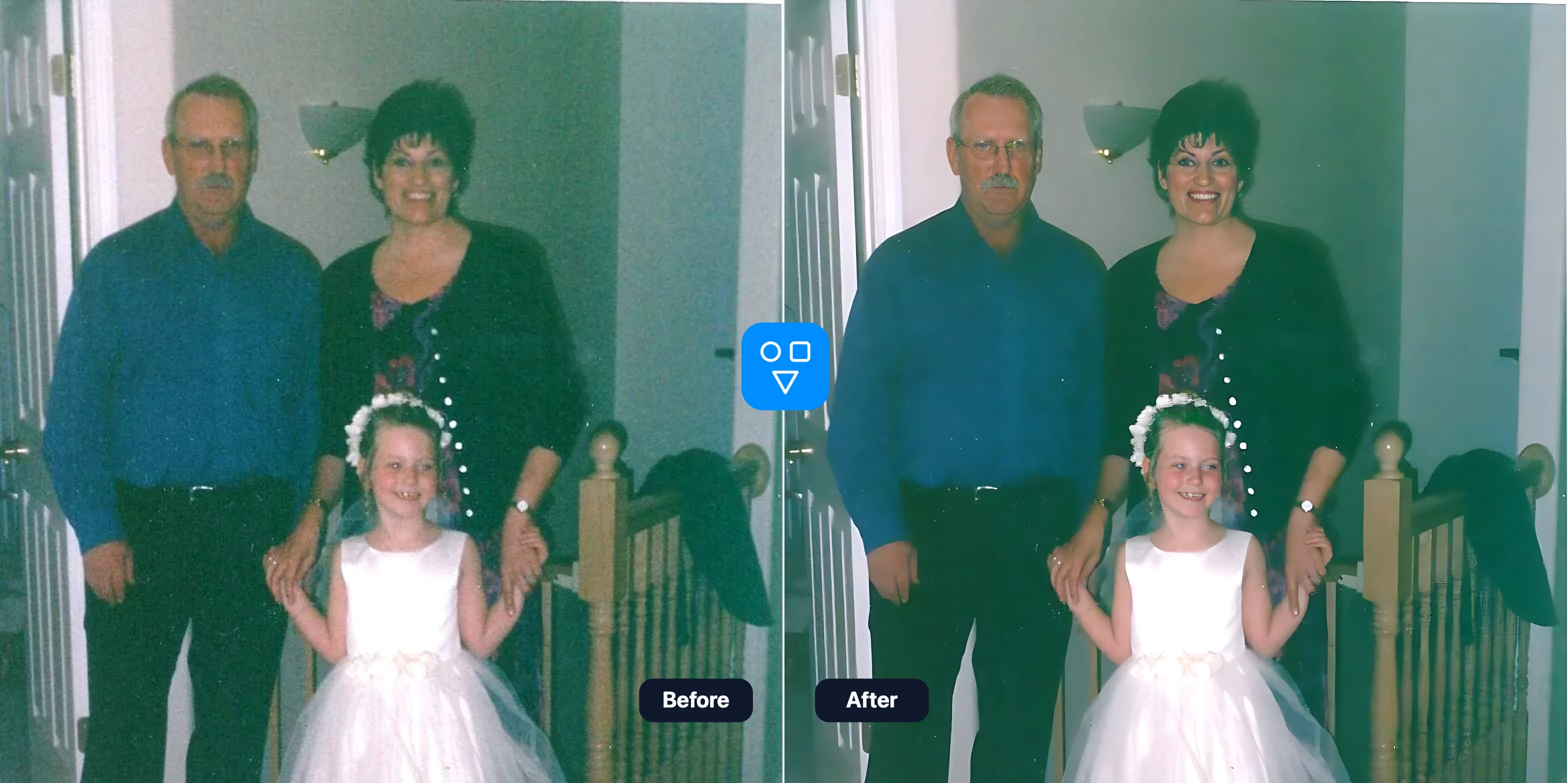
Restore Face तब इस्तेमाल करें जब मुख्य समस्या फेस डिटेल हो — पुराना पोर्ट्रेट, कंप्रेस्ड प्रोफाइल फोटो, फेस-स्वैप रिजल्ट या AI-जनरेटेड इमेज।
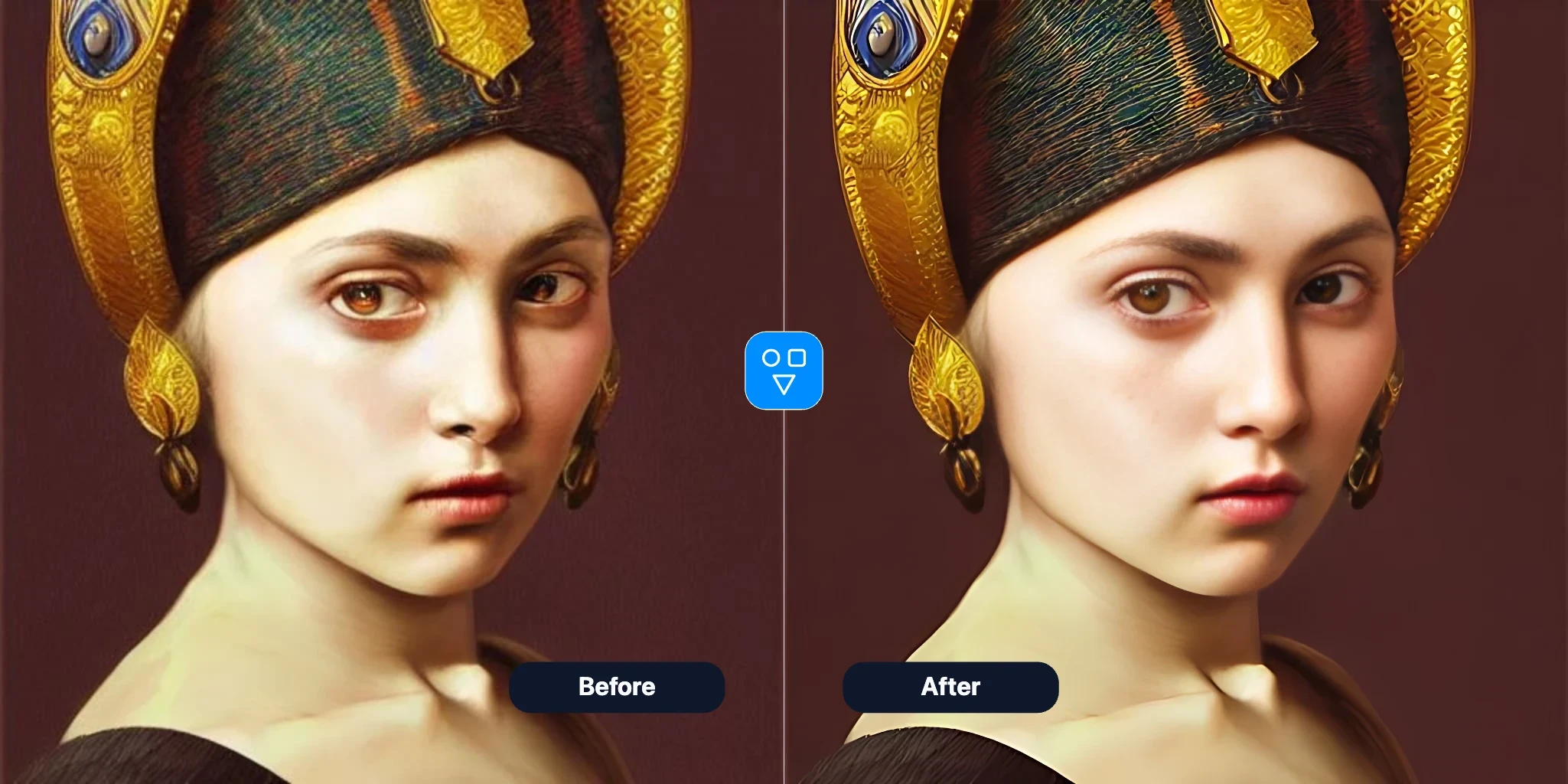
अगला कदम: चेहरा swap, चेहरे की डिटेल तेज़, या पूरी इमेज मरम्मत।
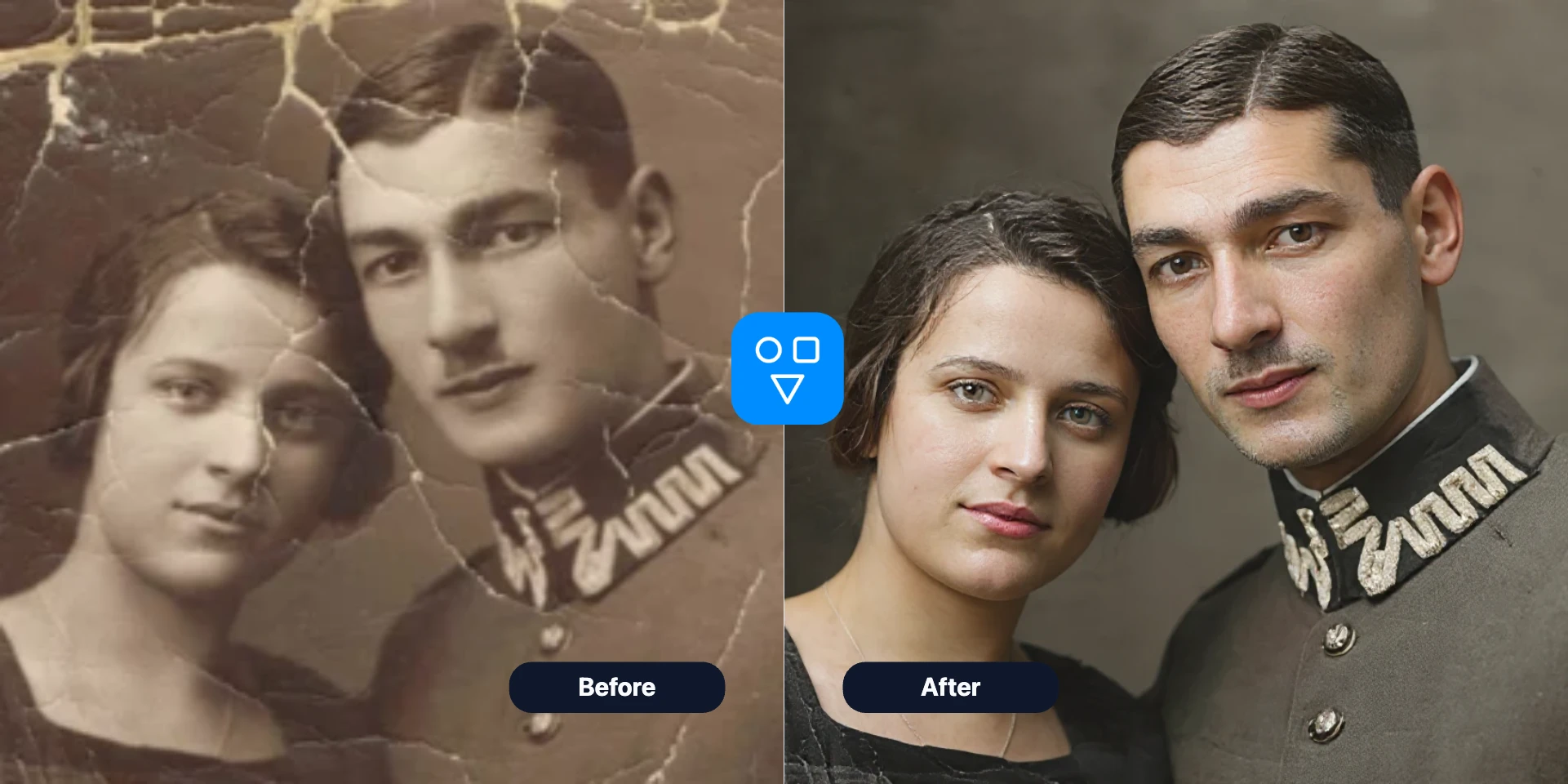
पुरानी, खरोंच वाली, फीकी या क्षतिग्रस्त फोटो AI रिस्टोरेशन से ठीक करें।
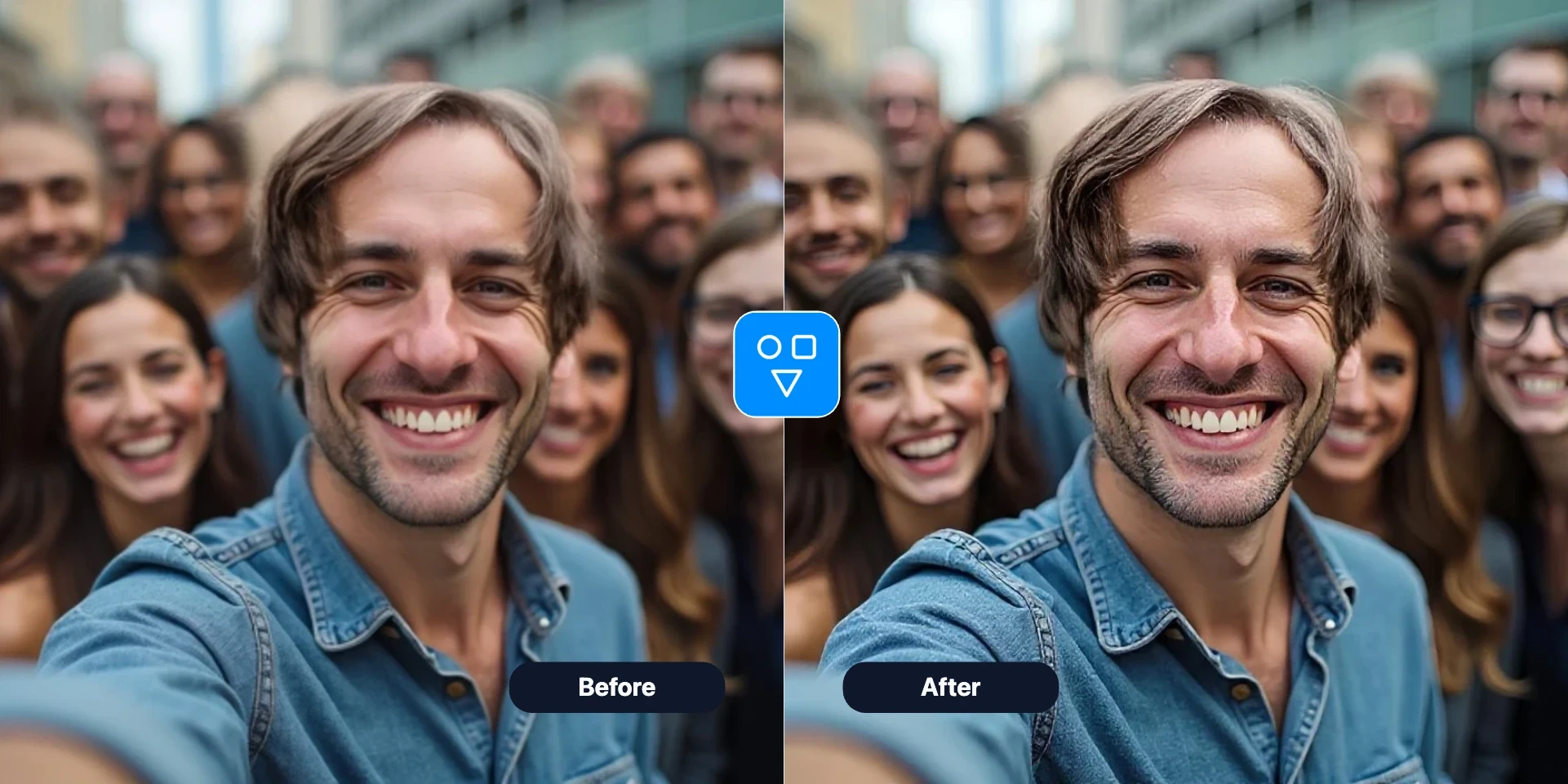
अपलोड की इमेज को ज़्यादा साफ और हाई-रेज़ल्यूशन परिणाम में बढ़ाएँ।
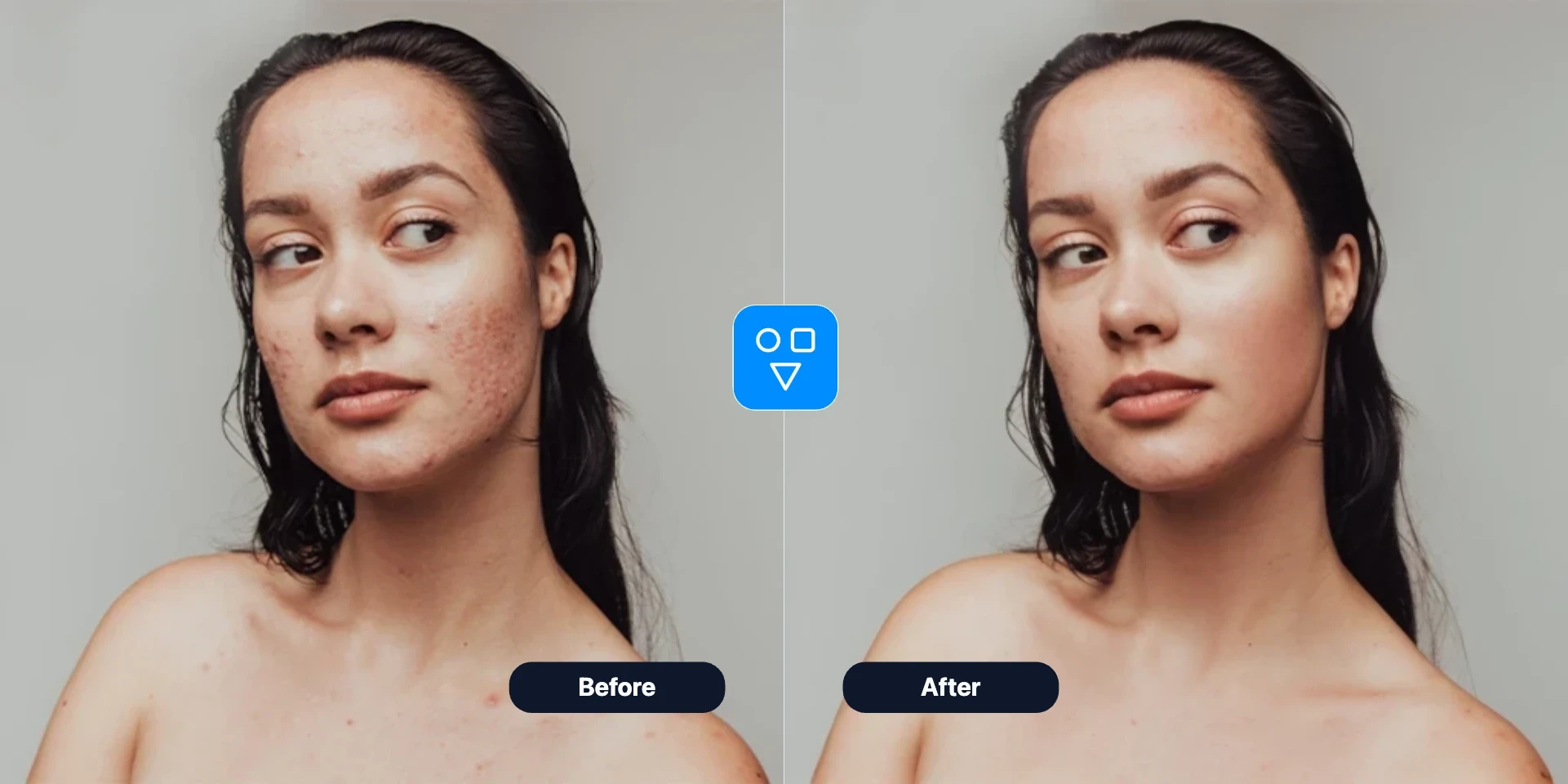
त्वचा को स्मूद करें, दाग-धब्बे कम करें और पोर्ट्रेट डिटेल एक ही स्टेप में निखारें।
जब चेहरा सबसे महत्वपूर्ण हो और तेज़ी से स्पष्ट पोर्ट्रेट चाहिए।
पुरानी फैमिली फोटो और स्कैन किए पोर्ट्रेट में फेस क्लैरिटी सुधारें, फिर पहचाने जाने वाले फीचर्स की तुलना अनटच्ड ओरिजिनल से करें।
सॉफ्ट या कंप्रेस्ड फेस फोटो साफ करें, लेकिन इस्तेमाल से पहले आँखें, मुँह, हेयरलाइन, एक्सप्रेशन और दिखने वाली उम्र जाँचें।
अप्राकृतिक या कम-डिटेल AI चेहरे ठीक — तेज़ upload-first workflow।
swap के बाद चेहरा मुलायम, आँखें अप्राकृतिक या अधिक डिटेल चाहिए — Enhance Face।
आगे क्या आज़माएं
अगला कदम: चेहरा swap, चेहरे की डिटेल तेज़, या पूरी इमेज मरम्मत।
एक चेहरा दूसरी फोटो में रखने से पहले — सफाई या सुधार से पहले यहाँ शुरू।
पूरी फोटो मरम्मत — खरोंच, फीका पन, व्यापक क्षति।
अपलोड, ज़रूरत हो तो स्टाइल समायोजित, जनरेट, बहाल परिणाम डाउनलोड।
सबसे साफ उपलब्ध कॉपी चुनें। चेहरा धुंधला हो सकता है, लेकिन मुख्य फीचर्स और फेस आउटलाइन तुलना के लिए पर्याप्त दिखाई देने चाहिए।
डिफ़ॉल्ट पहचान-केंद्रित या सेटिंग popover से स्टाइल और upscale।
परिणाम की तुलना ओरिजिनल से सामान्य साइज़ और 100% ज़ूम पर करें। डाउनलोड से पहले आइडेंटिटी, एक्सप्रेशन, हेयरलाइन, चश्मा, दाढ़ी-मूँछ और उम्र जाँचें।
जानकारी
पुराने, धुंधले, कम रिज़ॉल्यूशन और AI पोर्ट्रेट में चेहरे की स्पष्टता।
ऐसी फोटो जहाँ आँखें, नाक, मुँह अभी भी दिखें।
swap मुलायम लगे या तेज़ चेहरे की डिटेल चाहिए — Enhance Face।
जानें कौन से धुंधले चेहरे अच्छी रिस्टोरेशन कैंडिडेट हैं, आइडेंटिटी डिटेल कैसे तुलना करें, और कब पूरी फोटो को अलग वर्कफ़्लो चाहिए।
इनपुट फोटो, restore सेटिंग, गोपनीयता, क्रेडिट और face swap के बाद Restore Face — इनके जवाब।
चेहरे की फोटो अपलोड, AI बहाली चलाएं, स्पष्ट परिणाम डाउनलोड।