
Upscaling da un solo upload
Parti da un'immagine a bassa risoluzione e genera un output più nitido e più grande senza editor complesso.
- Caricamento di una singola immagine
- Dettagli più nitidi
- Risultato pronto al download
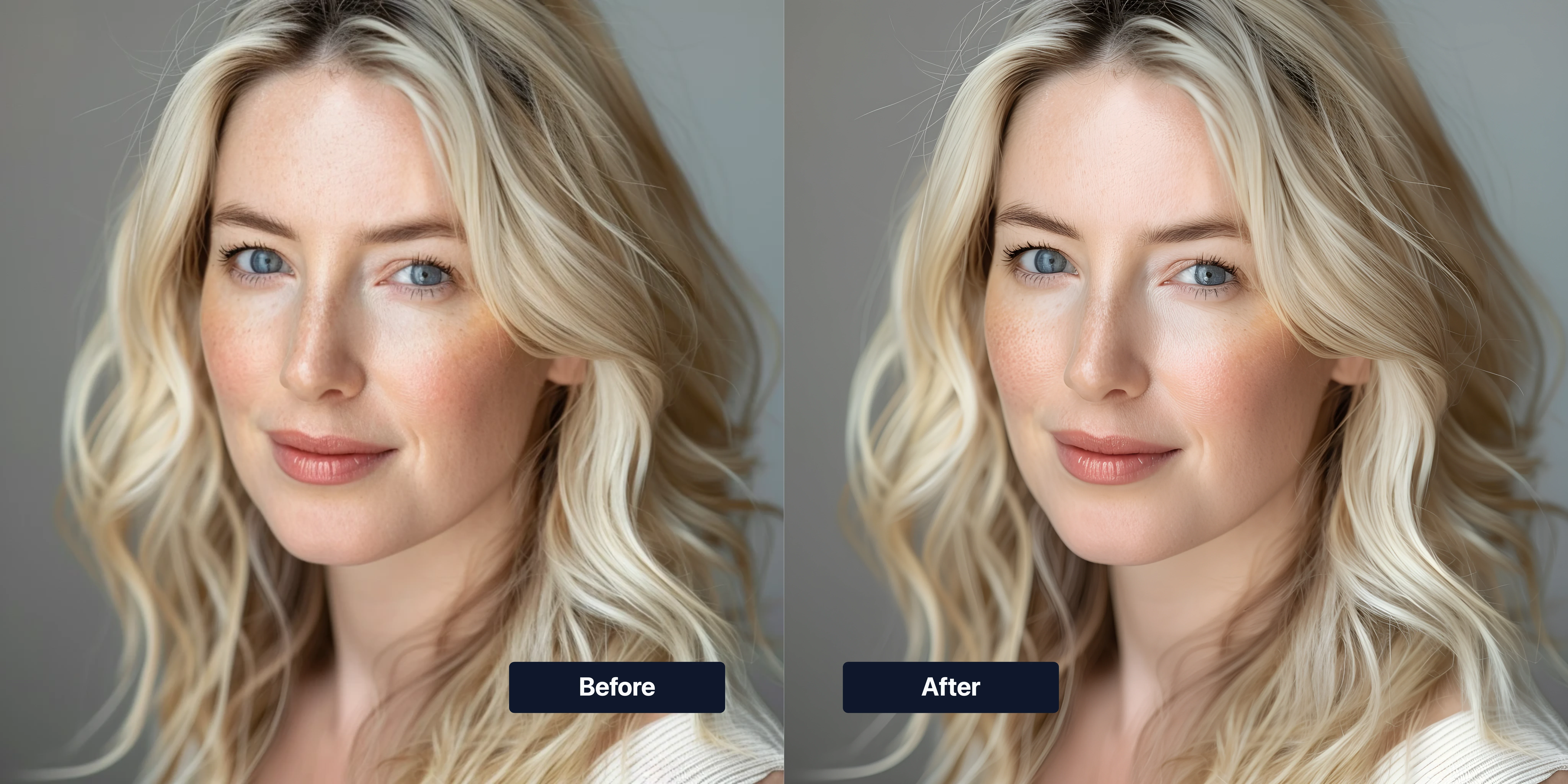
Upscaling IA
Carica una foto e migliora nitidezza, dettagli di texture e risoluzione output con un workflow IA di upscaling.
Workflow IA centrato sull'upload con controlli pratici per qualità, formato ed esecuzioni ripetibili.
Parti da un'immagine a bassa risoluzione e genera un output più nitido e più grande senza editor complesso.
Potenzia i dettagli fini di volti, abiti, sfondi e bordi per un'immagine più pulita su display grandi.
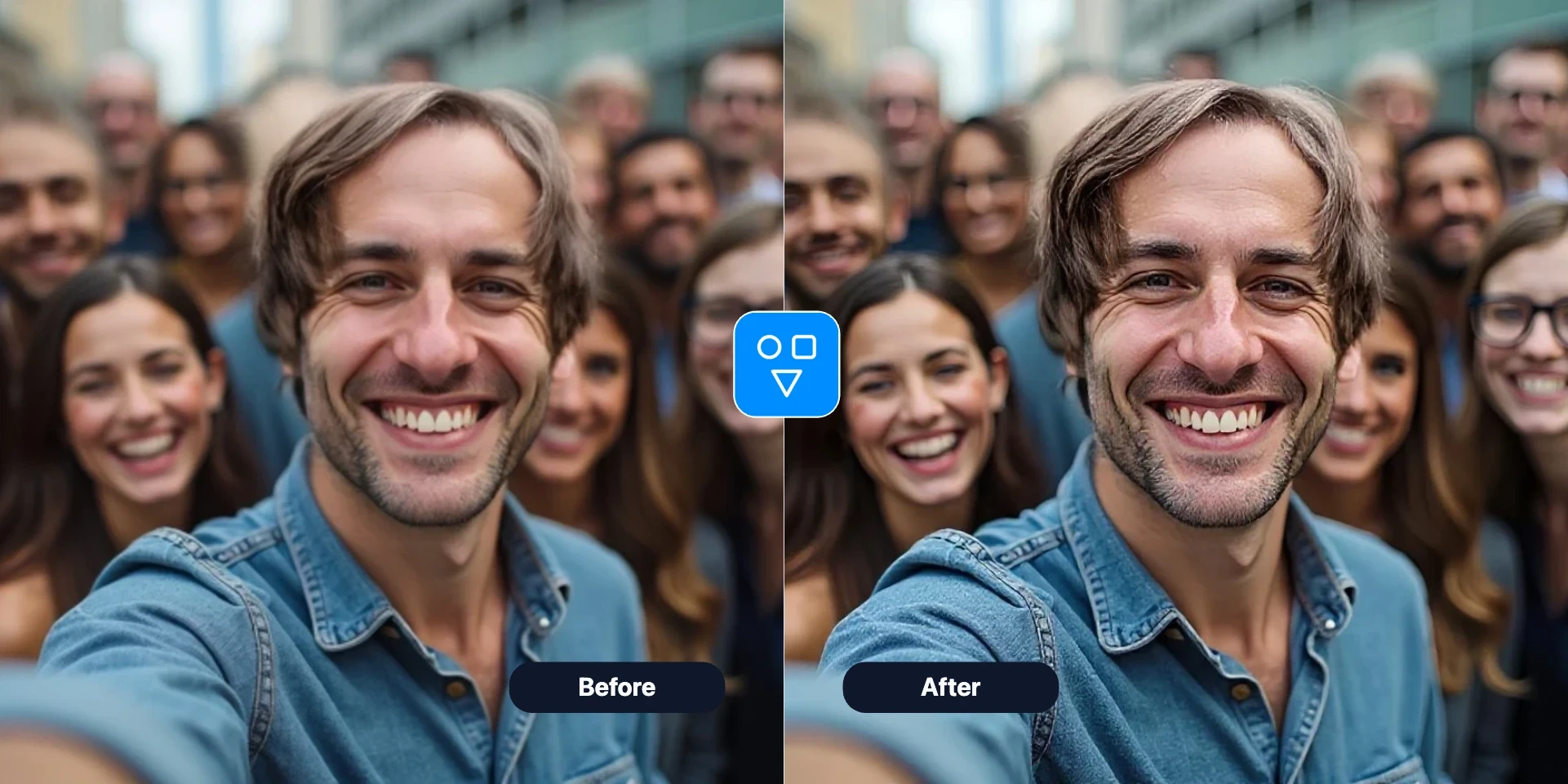
Scegli formato e qualità output, poi ripeti rapidamente per un diverso equilibrio tra dimensione file e dettaglio visivo.
Continua con gli strumenti FaceSwaply: scambio volto, ritocco ritratto, invecchiamento, upscaling, emoji, cartone, restaurare foto, foto professionale IA, acconciatura e restauro volto.
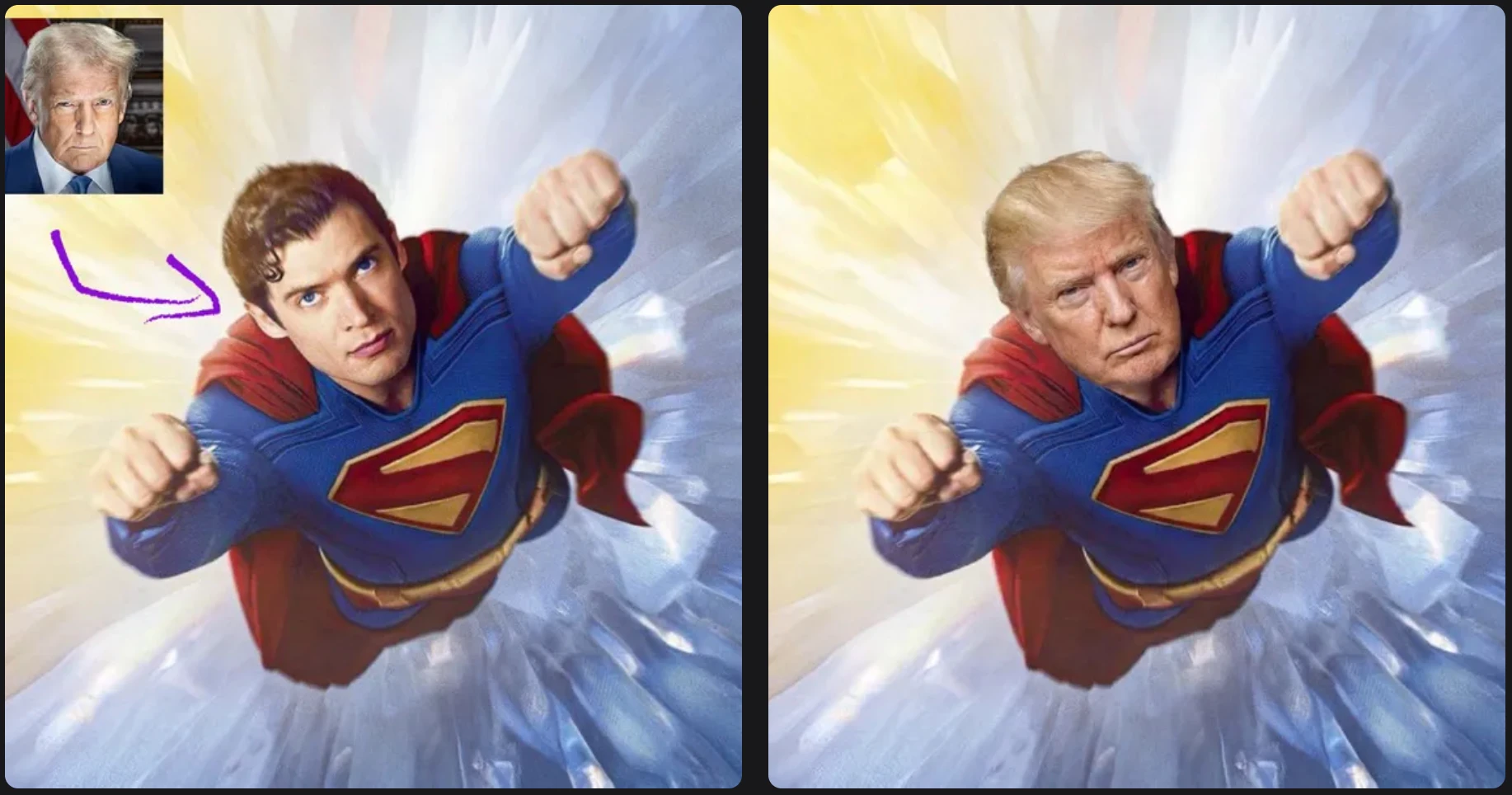
Inserisci un volto sorgente in una foto target con un workflow semplice a due immagini.
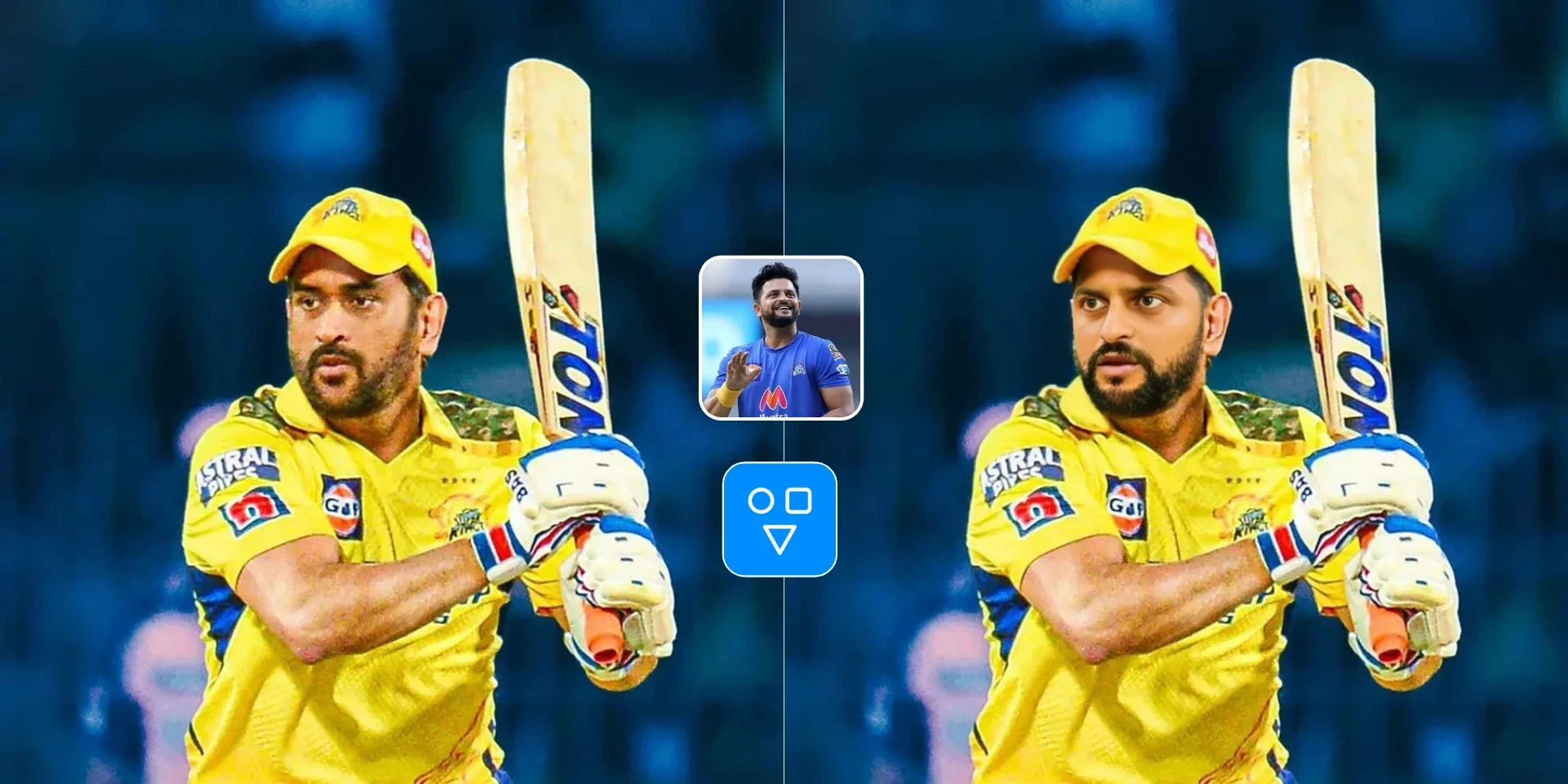
Scambia un'immagine del volto in un video target con un workflow asincrono ospitato.

Crea una foto professionale IA da un ritratto per LinkedIn, curriculum e profili business.
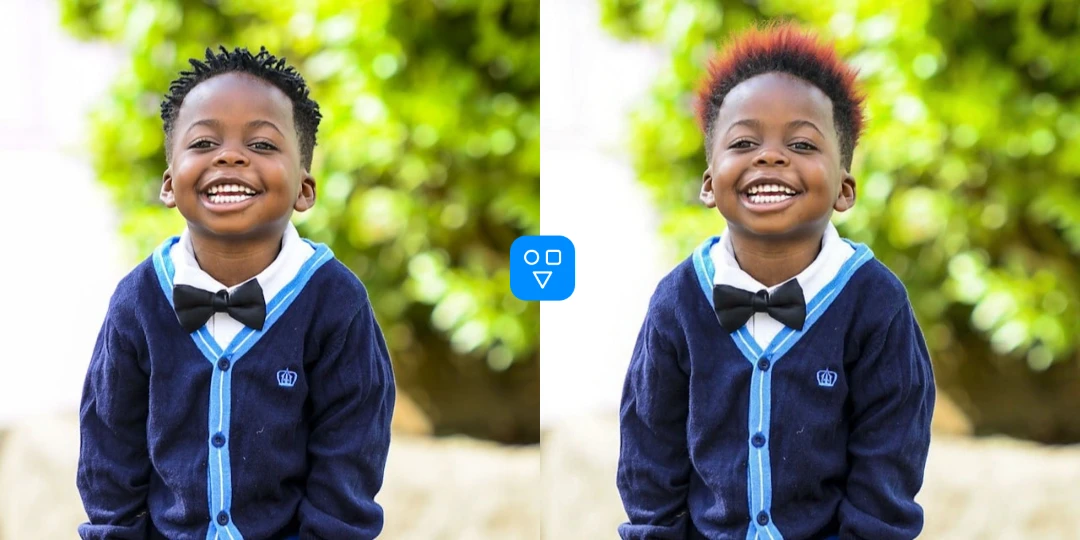
Anteprima acconciature e colori capelli da un ritratto prima di un cambiamento reale.
Usa upscaling IA quando risoluzione e nitidezza non bastano per il passo successivo.
Fai upscaling di foto compresse o vecchie prima di pubblicare per migliore qualità su schermi moderni.
Aumenta risoluzione utilizzabile e dettaglio percepito prima dell'export per stampa o revisione cliente.
Fai upscaling prima, poi continua con restaurare foto, ritocco o strumenti volto con sorgente più pulita.
Altri strumenti
Continua a migliorare le immagini con workflow di restauro, ritocco ritratto e trasformazione.
Ripara graffi, sbiadimento e danni sull'intera foto prima o dopo upscaling.
Pulisce texture pelle e affina dettagli ritratto quando il volto ha bisogno di polish extra.
Recupera dettagli facciali sfocati e migliora chiarezza identità su ritratti di bassa qualità.
Crea varianti ritratto più giovani o anziane con sorgente upscaled più pulita.
Carica un'immagine, scegli opzioni se serve, genera e scarica il risultato upscaled.
Scegli un'immagine a bassa risoluzione o compressa che ha bisogno di più nitidezza e dimensione.
Usa i default o regola preferenze output per qualità e formato.
Esegui upscaling IA, rivedi il risultato e scarica l'immagine ad alta risoluzione.
Buono a sapersi
Aumenta risoluzione e chiarezza visibile prima di condividere, stampare o altre edit IA.
Carica una volta, esegui upscaling e scarica un risultato più nitido.
Ideale per foto piccole, morbide o compresse — non per originali molto danneggiati.
Risposte su qualità di upscaling, quando usare altri strumenti prima, crediti e privacy.
Carica una foto, esegui upscaling IA e scarica un risultato HD più nitido.