Restore one face photo
Start with one portrait where the eyes, nose, mouth, and face outline are still recognizable, even if the image is soft, compressed, or low resolution.
- Single image upload
- Face-focused restoration
- Download-ready result
Restore Face
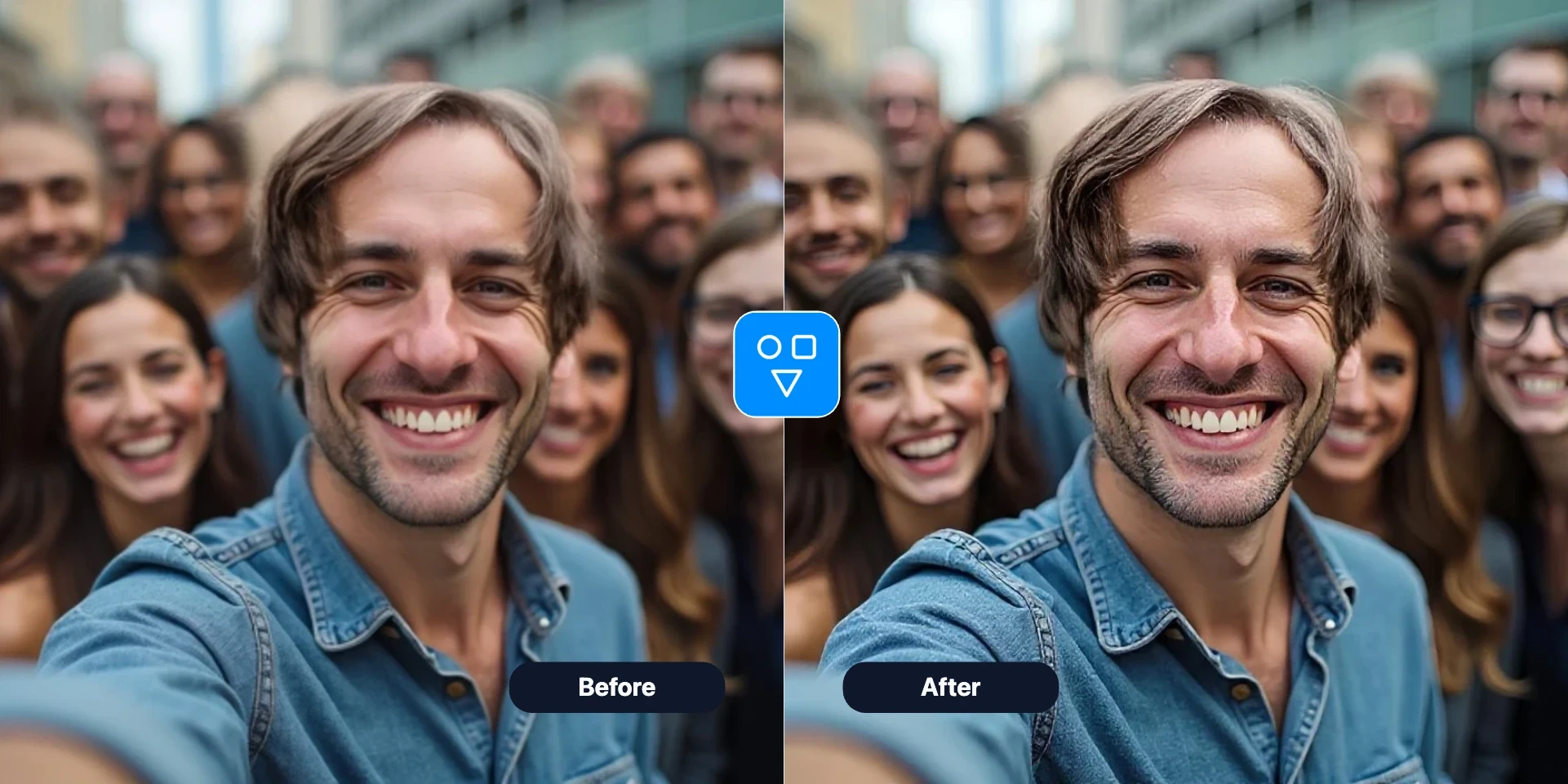
Upload one blurry, old, compressed, or AI-generated face photo and improve facial clarity. Compare the result with the original and use Restore Image when damage affects the whole picture.
Get a quick, focused face restoration workflow without opening a complex photo editor.
Start with one portrait where the eyes, nose, mouth, and face outline are still recognizable, even if the image is soft, compressed, or low resolution.
Keep the default style for most photos, or open settings to choose a quality-focused or identity-focused restoration style.
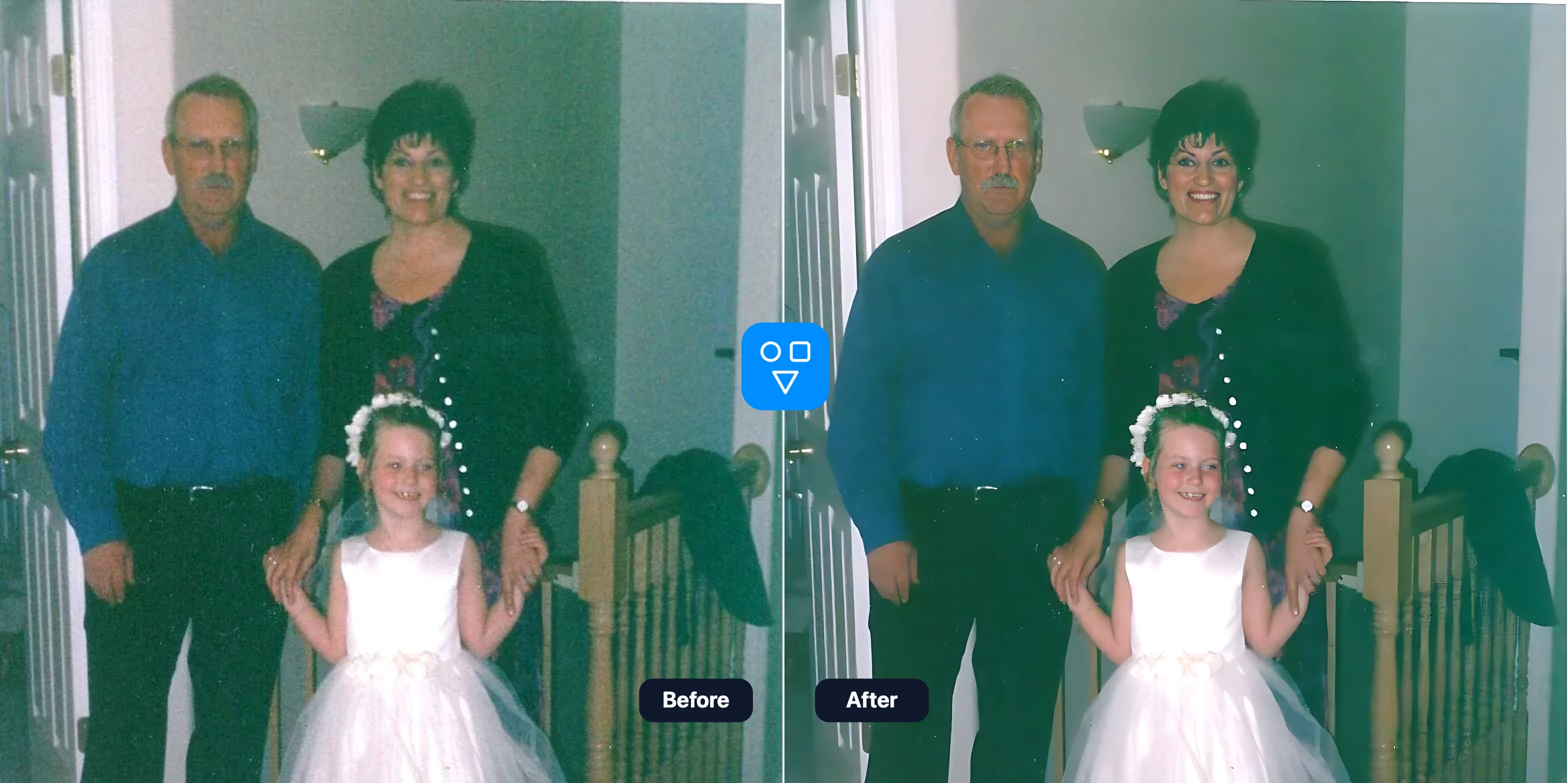
Use Restore Face when facial detail is the main issue in an old portrait, compressed profile photo, face-swap result, or AI-generated image.
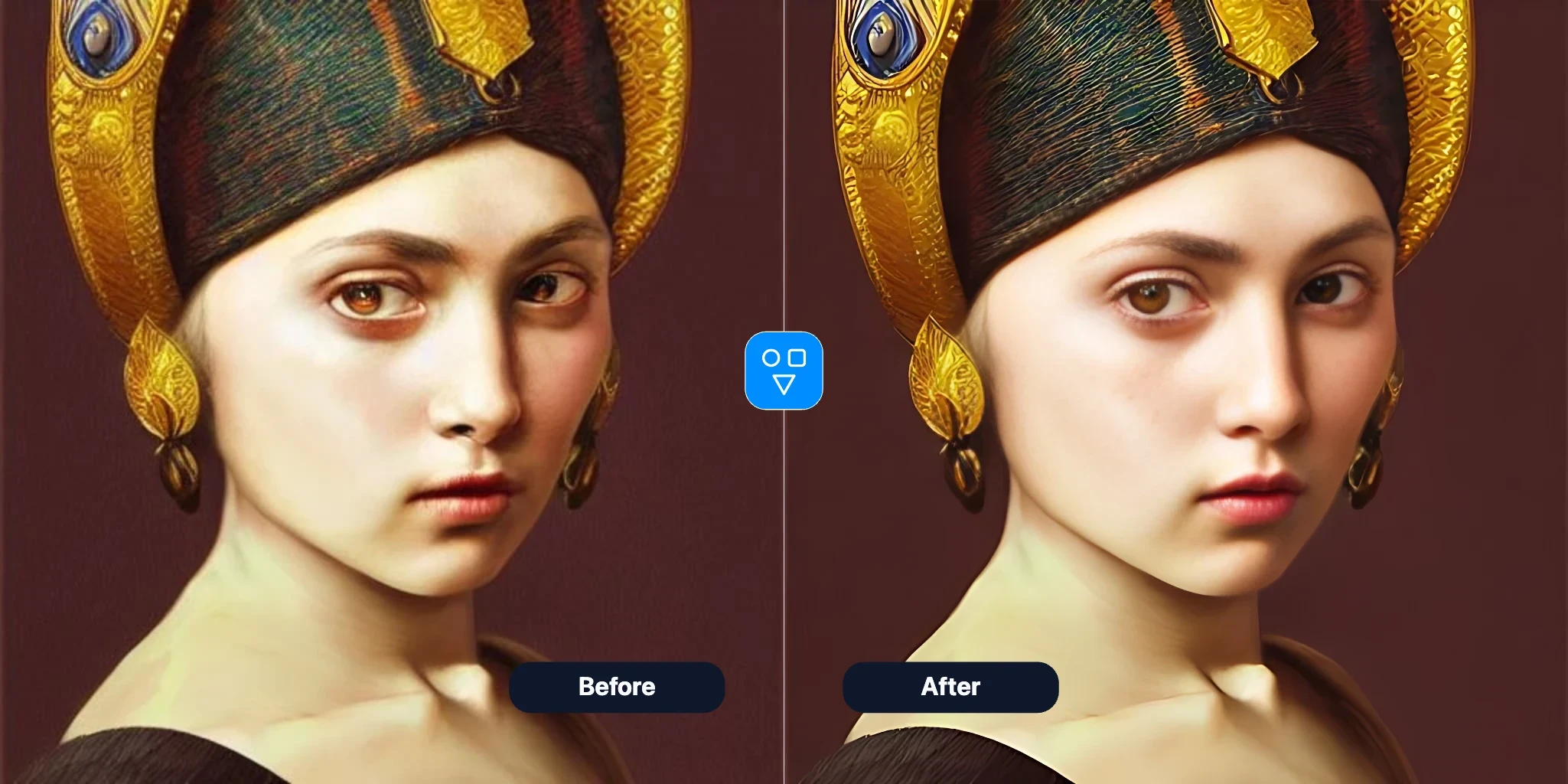
Choose the next step based on what you want to fix: swap a face, sharpen facial details, or repair the whole image.
Use the tool when the face matters most and you need a clearer portrait output quickly.
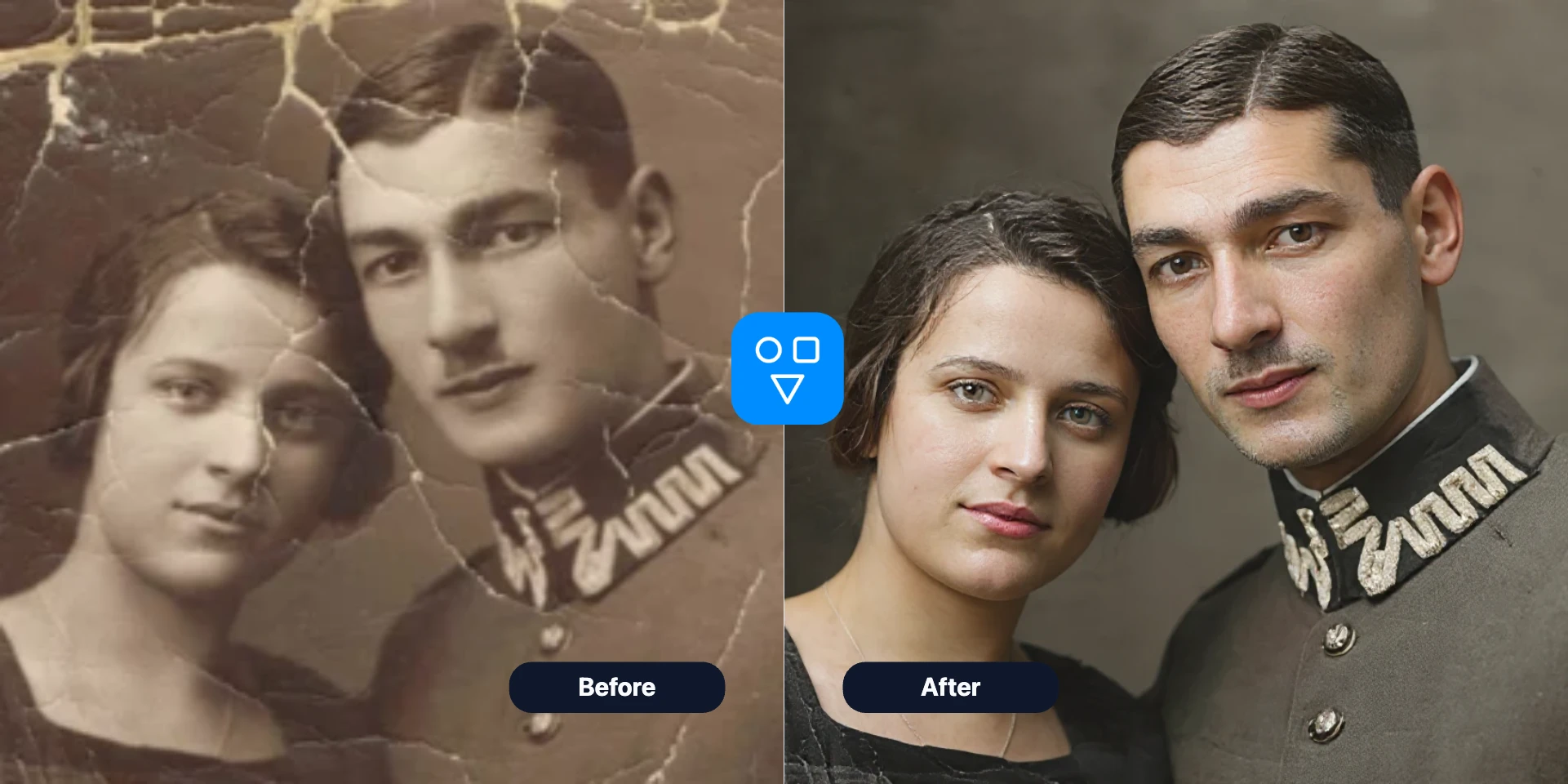
Improve face clarity in older family photos and scanned portraits, then compare recognizable features with the untouched original.
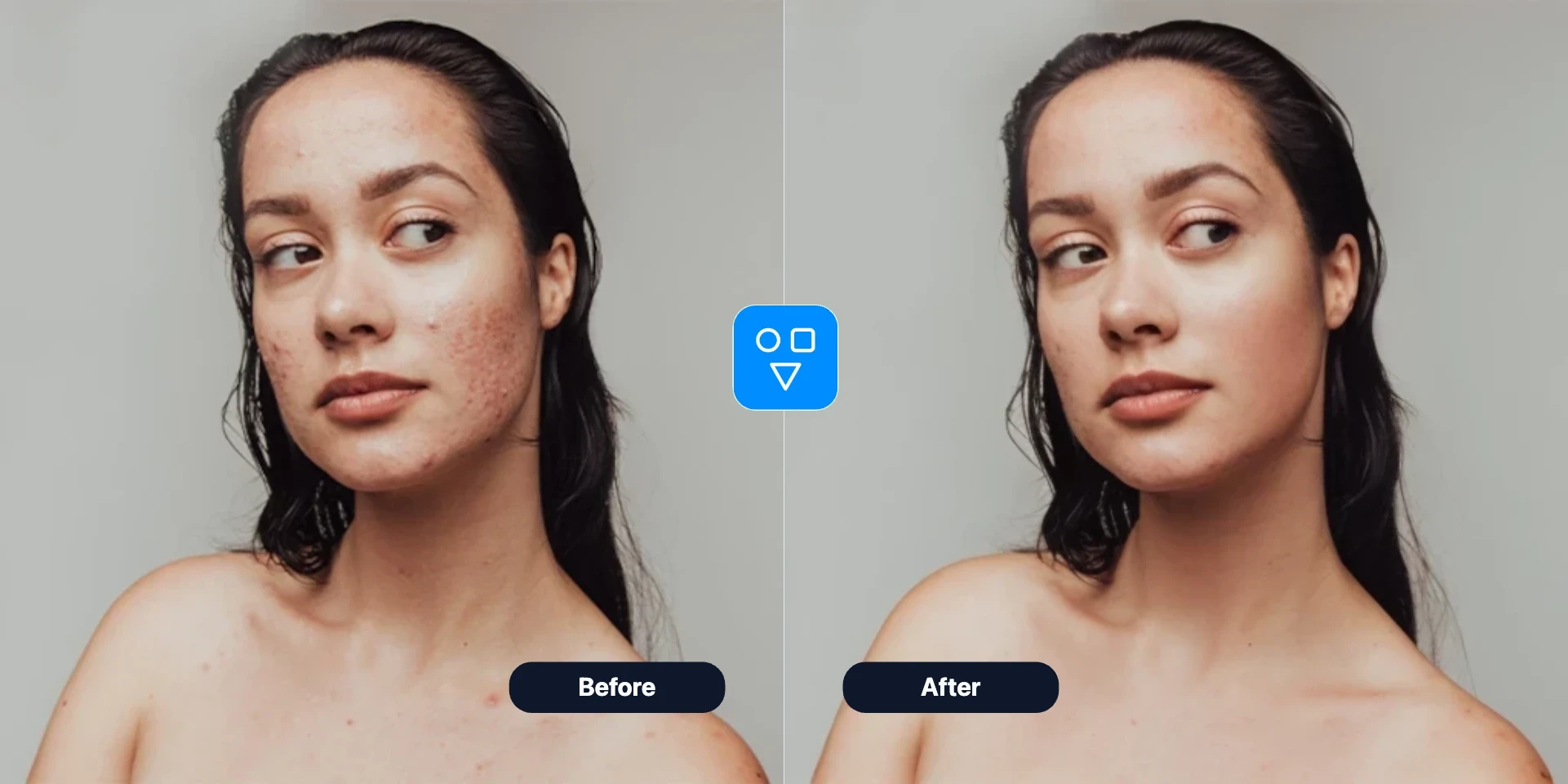
Clean up a soft or compressed face photo, but review eyes, mouth, hairline, expression, and apparent age before using the result.
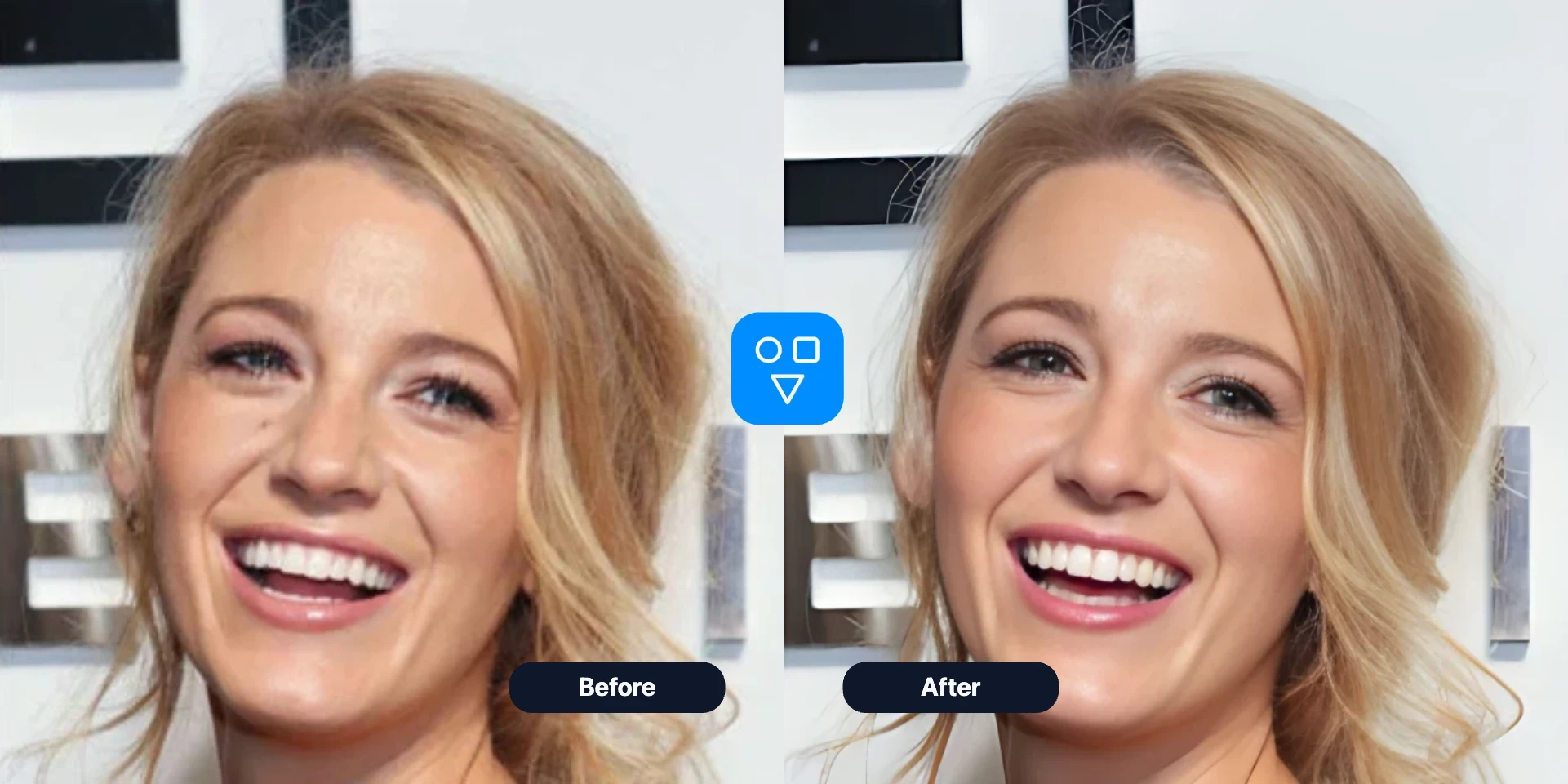
Repair unnatural or low-detail AI-generated faces while keeping the workflow fast and upload-first.
Use Enhance Face after a face swap when the face is soft, the eyes look unnatural, or the result needs more detail.
What to try next
Choose the next step based on what you want to fix: swap a face, sharpen facial details, or repair the whole image.
Start here when you need to place one face into another photo before any cleanup or enhancement pass.
Use this when the whole photo needs repair, including scratches, fading, and broader image damage.
Upload, adjust the restore style if needed, generate, and download the restored result.
Choose the clearest available copy. The face can be blurry, but key features and the face outline should still be visible enough to compare.
Use the default identity-focused setting or open the settings popover to adjust restore style and upscale.
Compare the result with the original at normal size and 100% zoom. Check identity, expression, hairline, glasses, facial hair, and age before downloading.
Good to know
Improve facial clarity in old, blurry, low-resolution, and AI-generated portraits.
Choose photos where eyes, nose, and mouth are still visible.
Use Enhance Face when a swap looks soft or needs sharper facial detail.
Learn which blurry faces are good restoration candidates, how to compare identity details, and when the full photo needs a different workflow.
Answers about input photos, restore settings, privacy, credits, and how Restore Face fits after face swap.
Upload a face photo, run AI restoration, and download a clearer result.