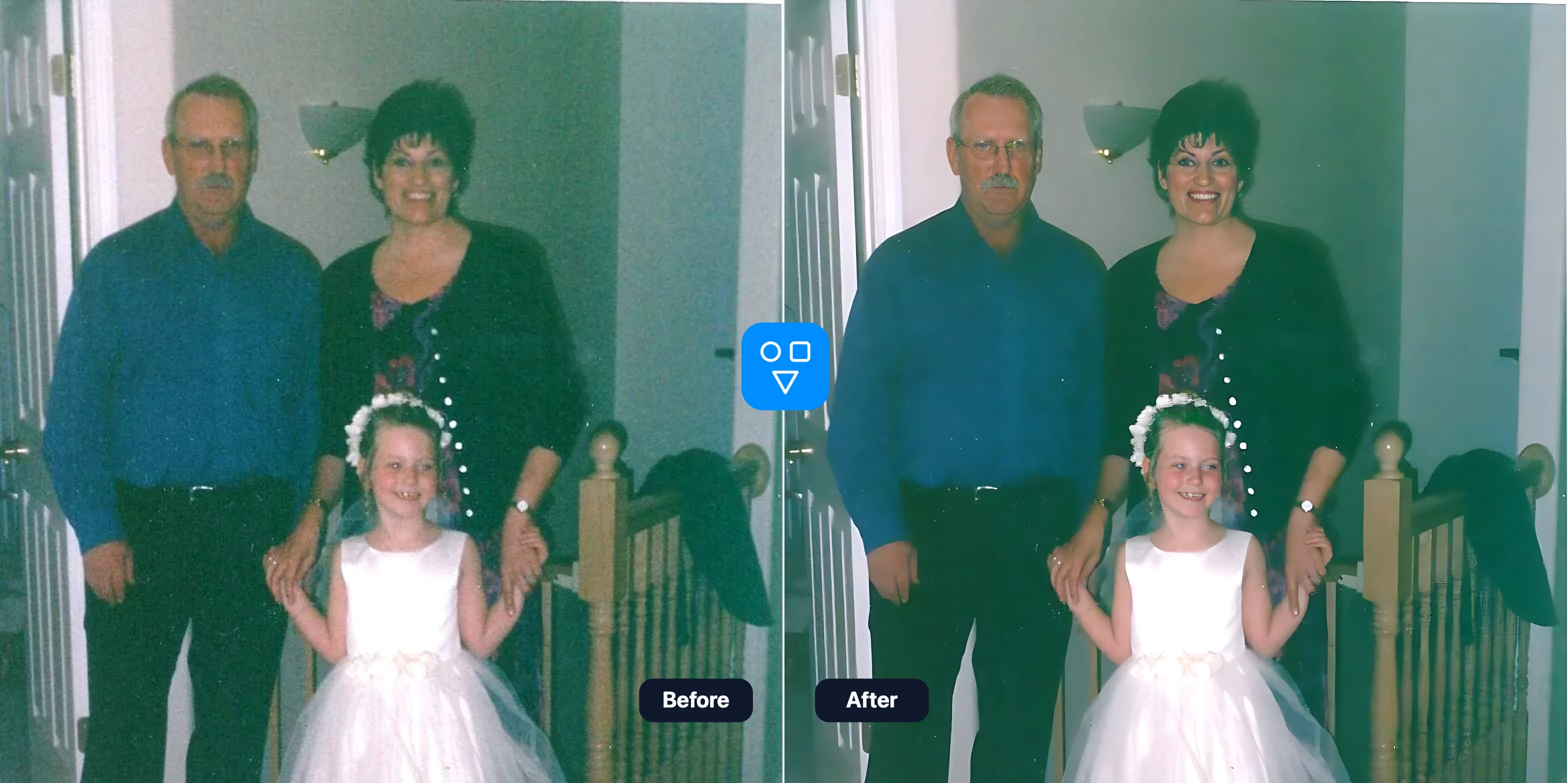
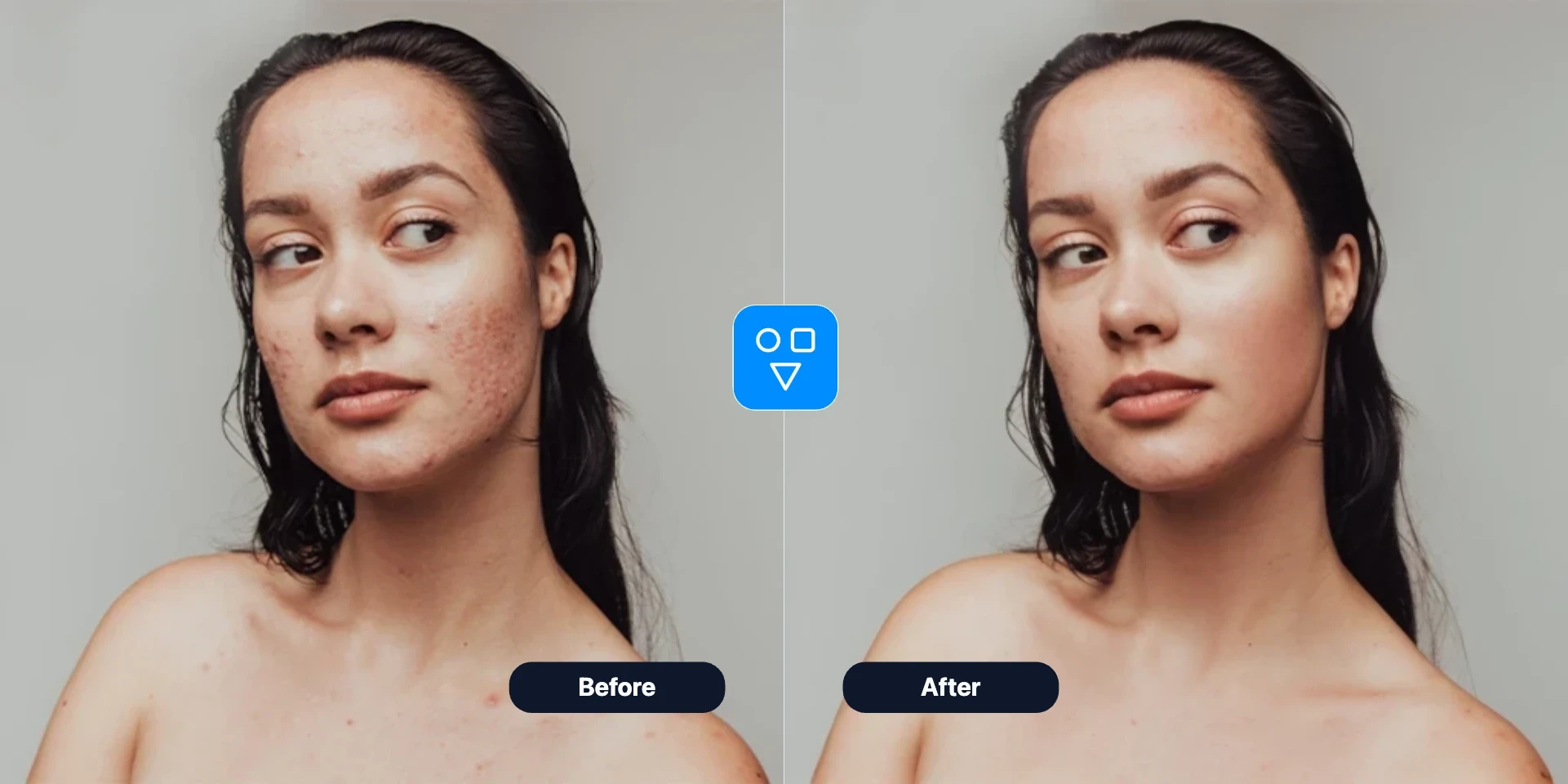
Repair old and damaged photos
Upload a clear scan or photo of a scratched, faded, or damaged print and run a full-image restoration workflow without manual layers.
- Single image upload
- Full-photo restoration
- Download-ready result
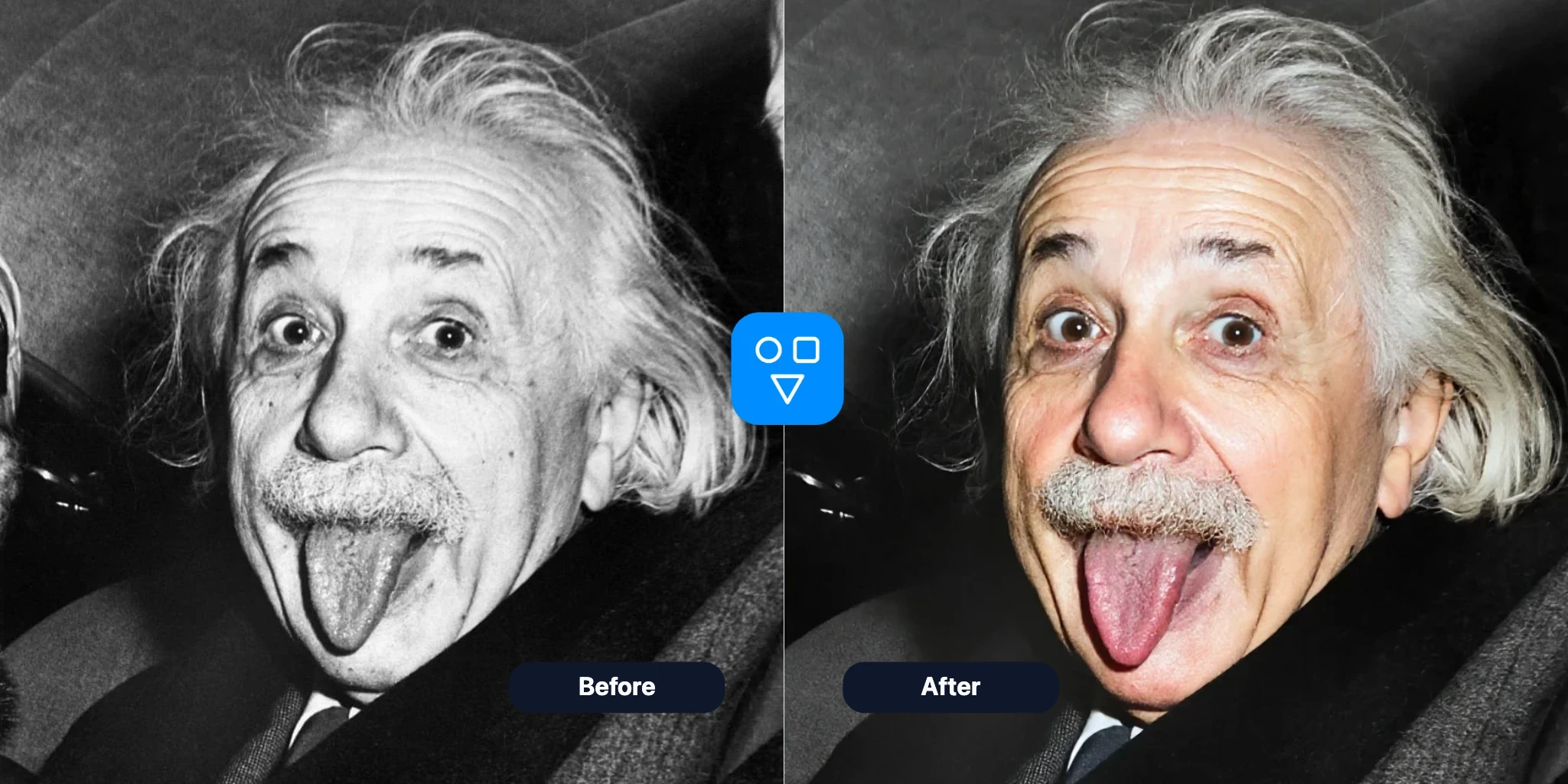
Restore Image
Upload one old photo to repair scratches, fading, noise, and damage across the full image. Use Restore Face afterward only when facial detail needs a separate focused pass.
Get a focused upload-first image restoration flow before continuing into portrait or face transformation tools.
Upload a clear scan or photo of a scratched, faded, or damaged print and run a full-image restoration workflow without manual layers.
Use Restore Image when damage extends beyond the face into the background, clothing, texture, scratches, fading, or noise across the photo.
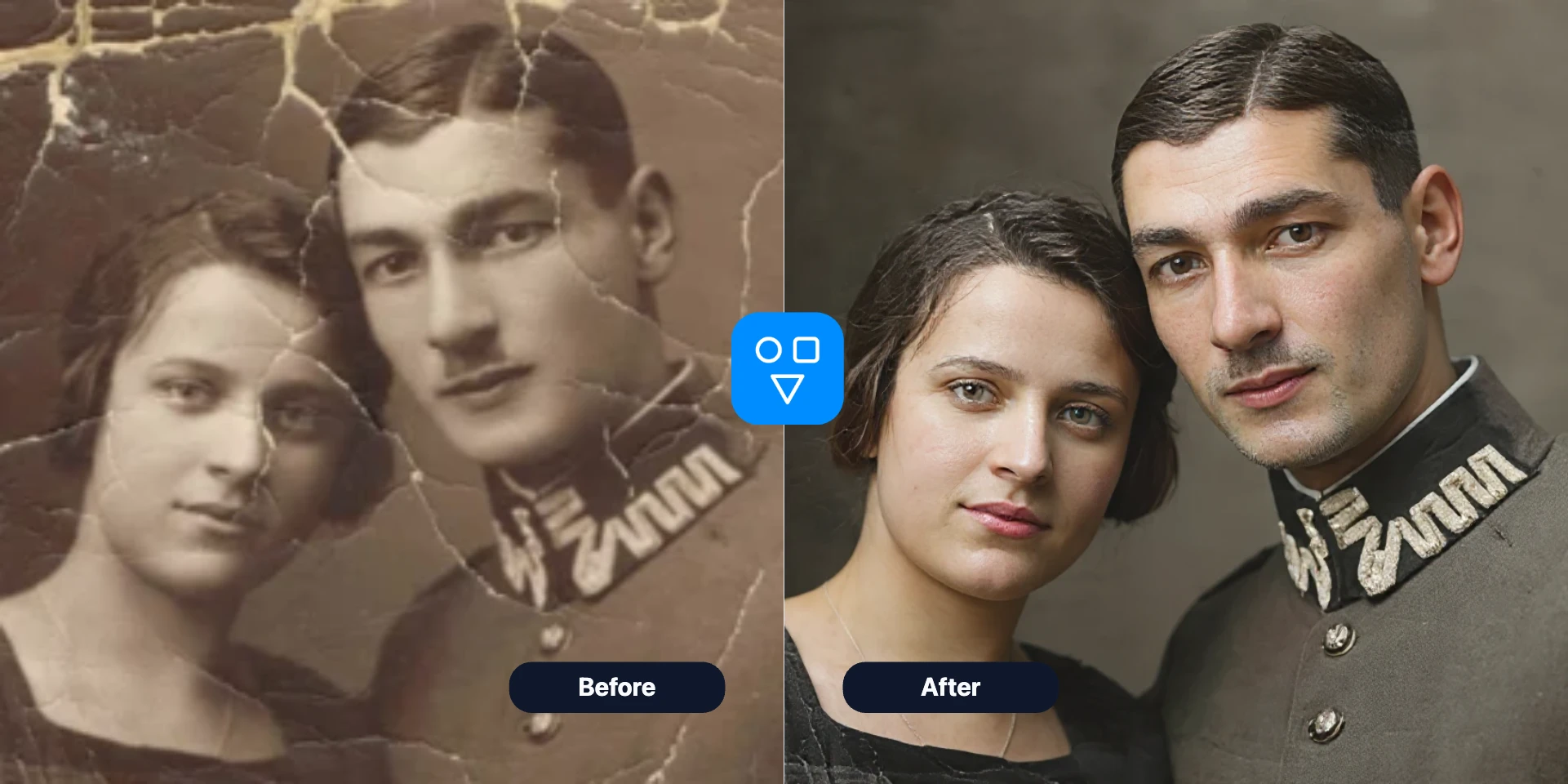
Choose PNG or JPG output, adjust safety tolerance when needed, and optionally set a seed for reproducible restoration runs.
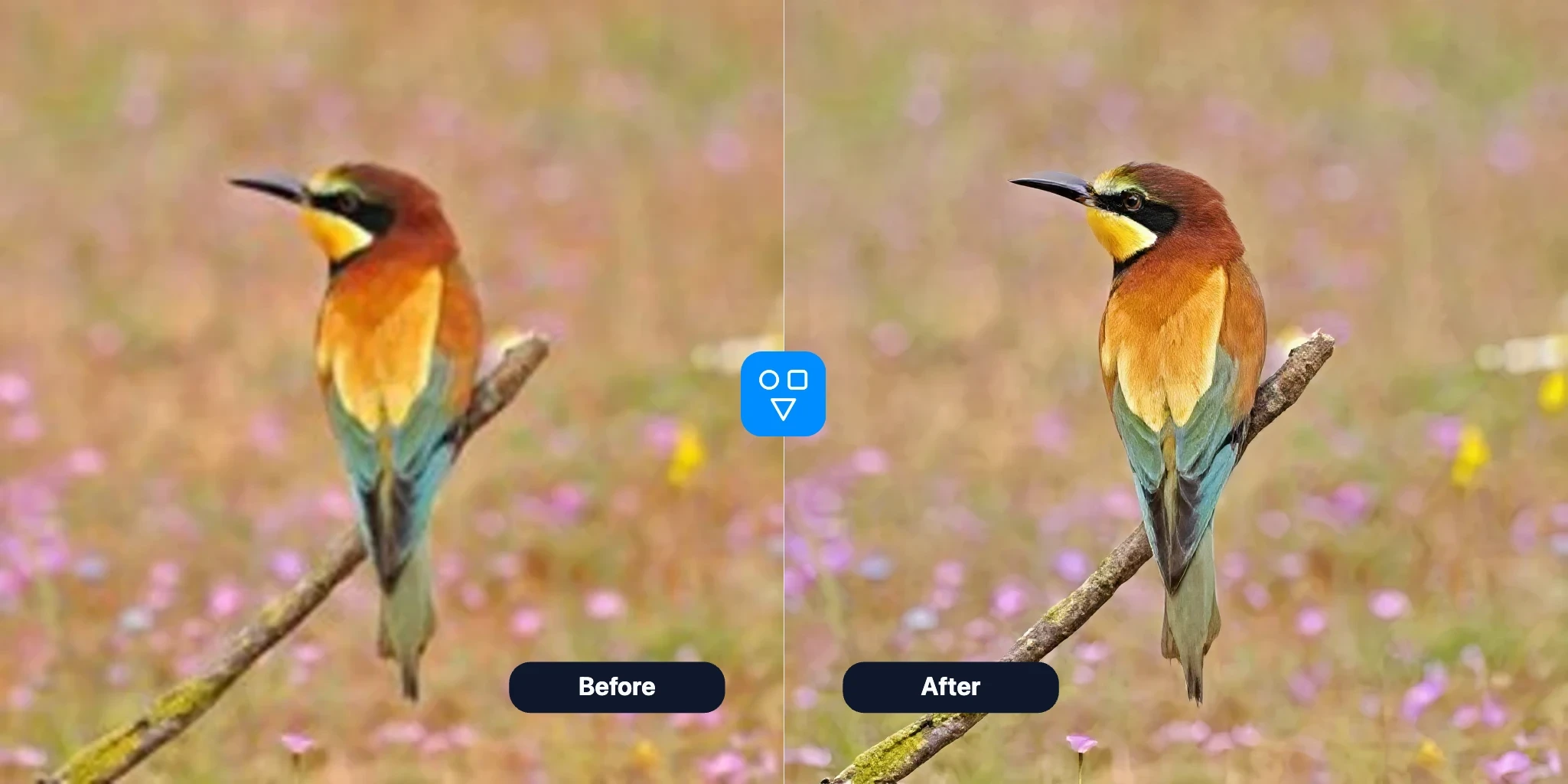
Choose the next step based on what you want to fix: swap a face, sharpen facial details, or repair the whole image.
Use Restore Image when the whole photo needs repair instead of only the face.
Improve faded or aged family photos before sharing or archiving. Review the restored file carefully before making a new print.
Repair visible damage across the image when the issue is not limited to the face.
Restore the whole photo first, then continue with face-focused or portrait transformation tools if needed.
What to try next
Choose the next step based on what you want to fix: swap a face, sharpen facial details, or repair the whole image.
Start here when you need to place one face into another photo before any cleanup or enhancement pass.
Choose this when facial clarity is the main issue and you want a focused pass on eyes, skin, and face details.
Upload an image, adjust restoration options if needed, generate, and download the result.
Choose the clearest scan or camera copy available. Keep the print flat, avoid glare, and include the full photo without cropping damaged edges.
Keep the default settings or open the options popover to choose format, safety, and seed.
Run image restoration and compare the result with the original. Check faces, hands, text, jewelry, and fine patterns before downloading or printing.
Good to know
Repair full photos with scratches, fading, noise, and general damage.
Restore Image fixes the whole photo; Restore Face targets facial detail only.
Prepare a better scan, understand what AI restoration can change, and review facial detail before saving or printing the result.
Answers about full-photo restoration, how it differs from Restore Face, credits, and privacy.
Upload an old, scratched, or faded photo and repair it with AI image restoration.